
eSIM
Can You Keep Your Home SIM for Verification Codes While Using a Travel eSIM in China?
Use a travel eSIM for data in China while keeping your home SIM active for verification texts, with device checks, dual-SIM settings, cost controls, and OTP troubleshooting.
Quick Answer
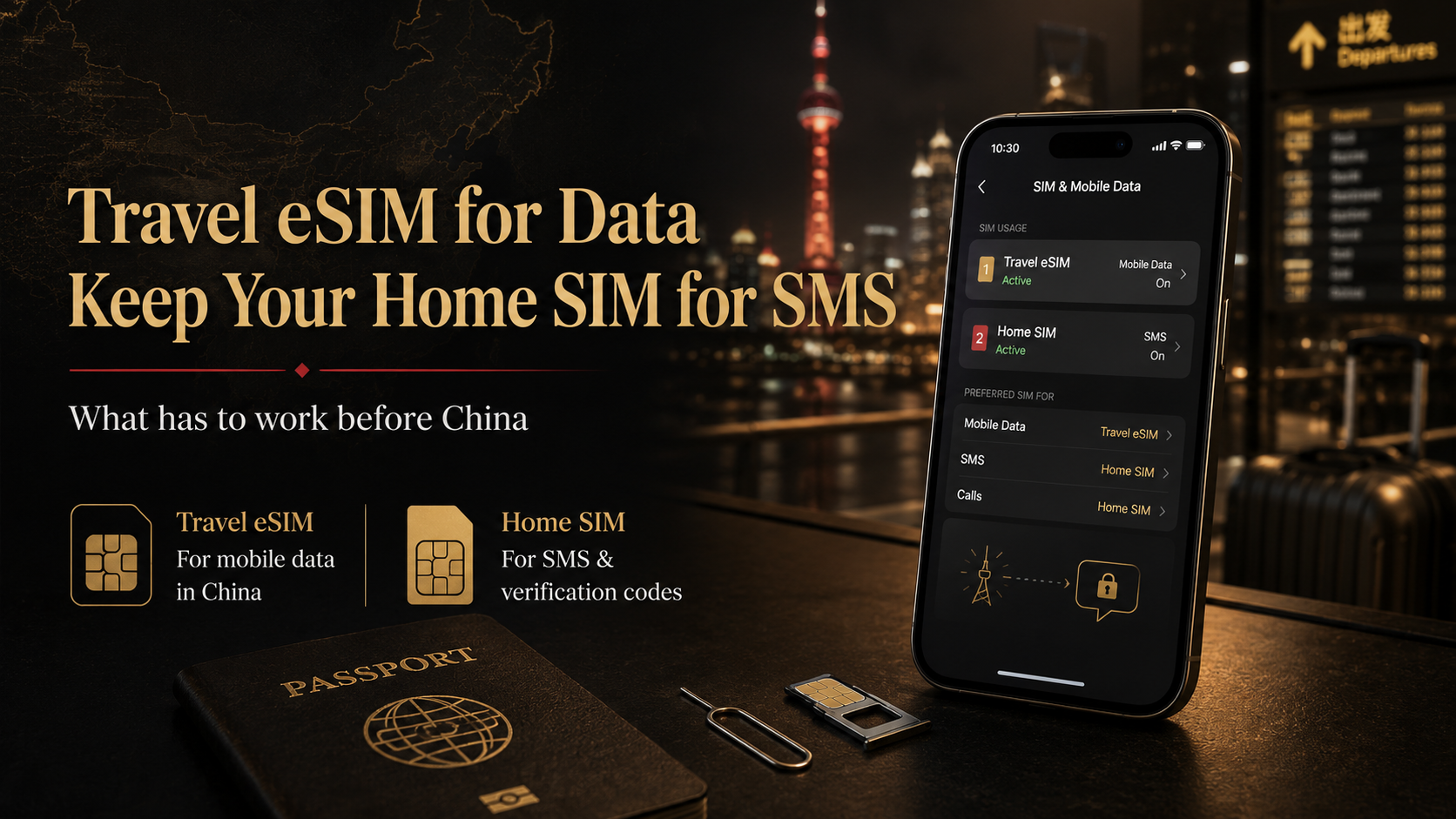
Yes. On a compatible, unlocked dual-SIM phone, you can normally use a travel eSIM as the mobile-data line in China while keeping your home physical SIM or home eSIM enabled for incoming verification texts.
This works only if the phone can keep both lines active, the home line can register on a roaming network in China, and the bank or account provider delivers the code. Turning off Data Roaming on the home line is not the same as turning off the line itself.
Yes—but Three Separate Conditions Must Work
The device gate requires more than two installed SIM profiles. Your phone must support the exact Home-and-Travel combination being active simultaneously. Capability can vary by model, purchase region, software, and carrier configuration.
The carrier gate requires the Home line to register with a roaming partner in China and retain an SMS path. A profile that remains installed but shows No Service or SOS only has not passed this gate.
The sender gate requires the bank, email provider, payment app, or other account to send the code to the correct number and allow delivery while that number is roaming. Receiving an ordinary SMS does not guarantee every bank short code or service message.
A data-only travel eSIM solves none of the last two gates. You can have working maps and banking-app data while the Home line remains unreachable, or receive ordinary SMS while one bank OTP still fails.
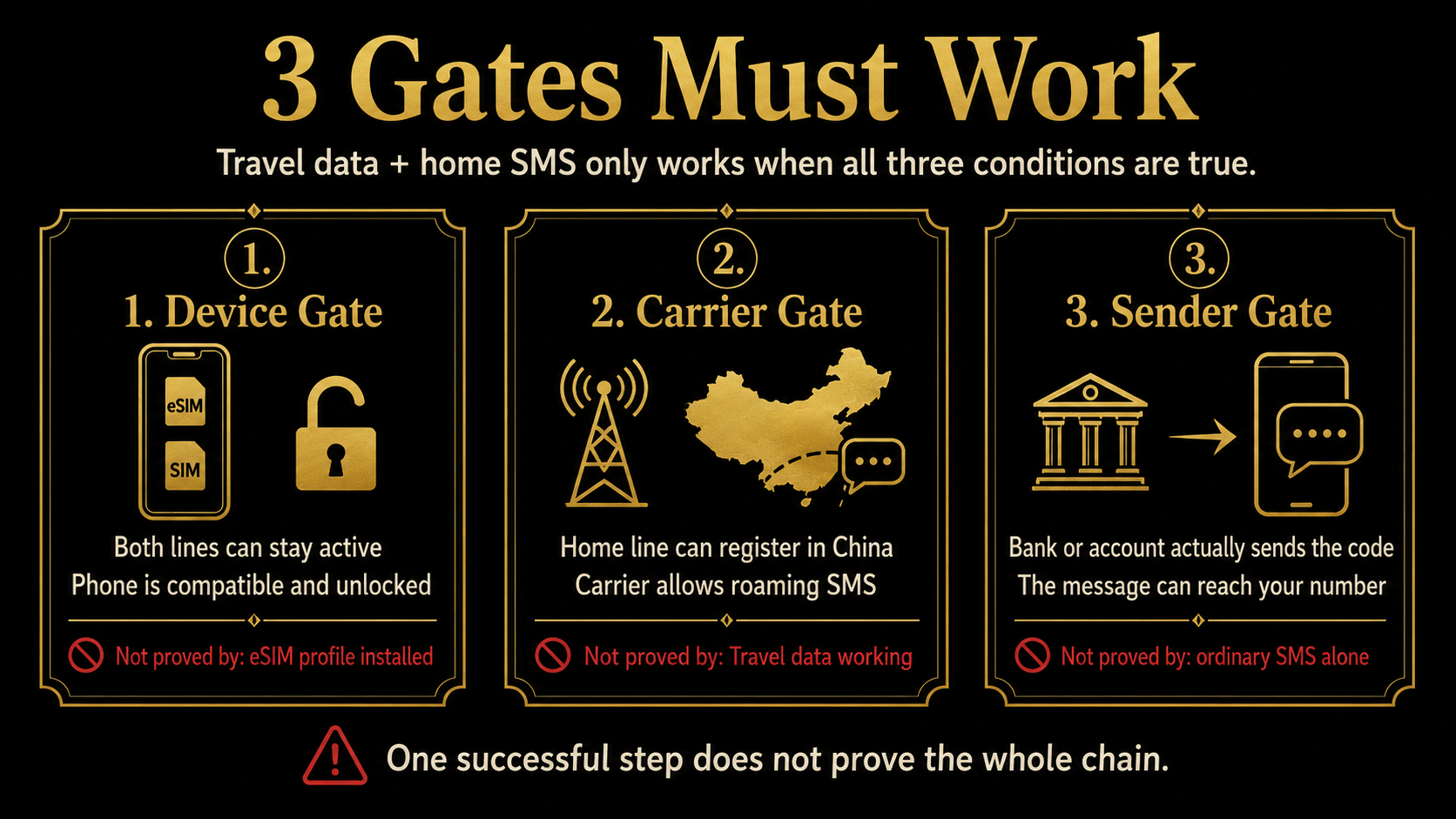
Treat the setup as a chain: one successful stage does not prove the later stages.
Give Each SIM One Clear Job
The Travel line handles mobile data for maps, translation, payment apps, bank apps, email, and other online services. The Home line preserves your original number for ordinary SMS, verification codes, and necessary calls.
Home can be a physical SIM or an eSIM. The Travel plan may be data-only or include other features; check the specific plan rather than assuming every travel eSIM works alike.
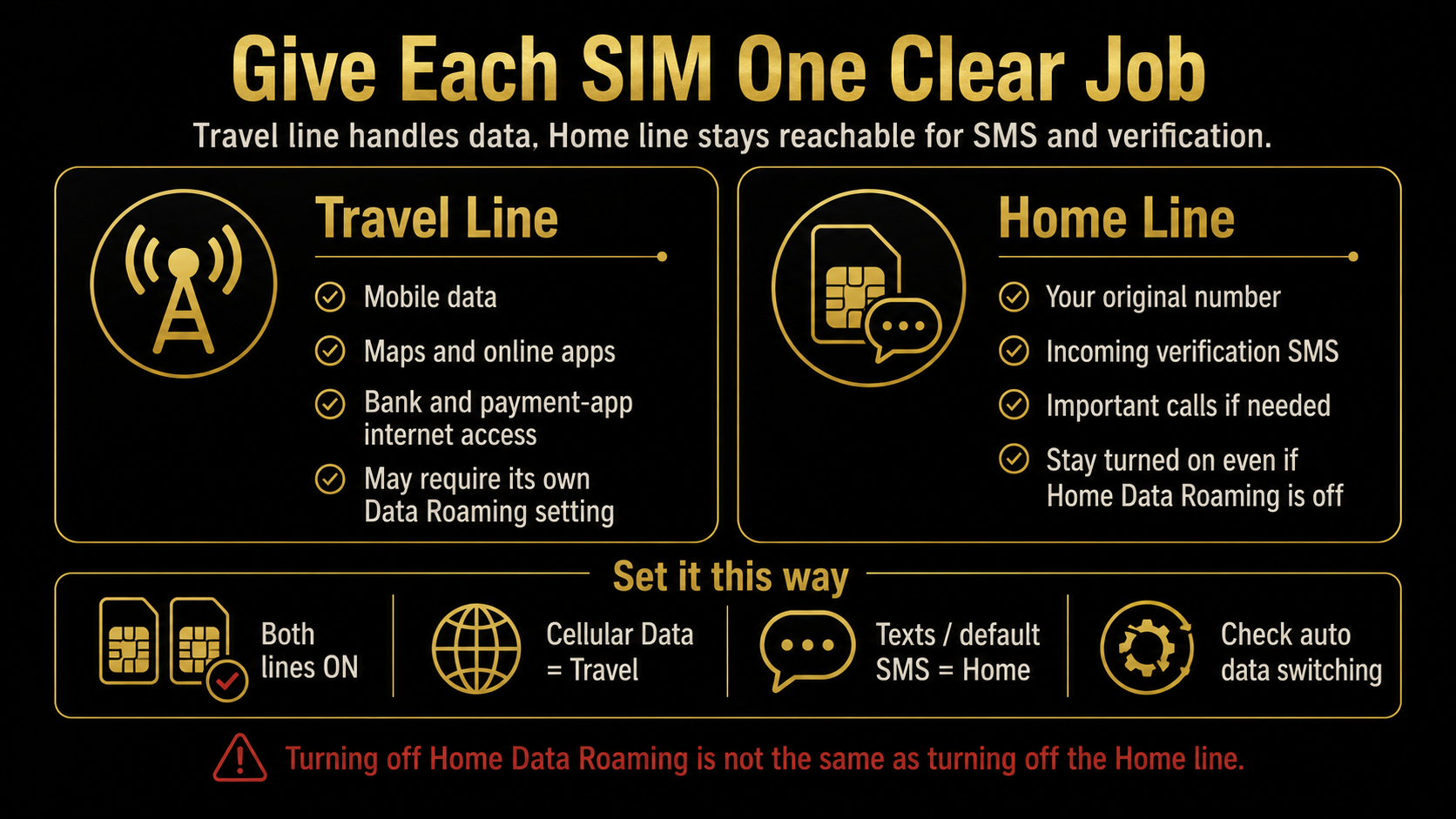
| Function | Recommended line | Why |
|---|---|---|
| Mobile data | Travel | Keeps routine internet traffic off the home roaming plan |
| Incoming verification SMS | Home | Codes still target the number attached to your accounts |
| Default calls | Home or Ask Every Time | Reduces accidental use of the wrong line |
| Default outgoing SMS | Home | Preserves your original sending number when needed |
| Backup internet | Home roaming or another prepared option | Provides a recovery path if Travel data fails |
Travel data does not redirect SMS sent to your Home number. The Home line must receive those messages.
Before departure, ask a trusted contact to send an ordinary SMS to Home. Separately test the real verification method for one or two important accounts without repeatedly requesting codes. Ordinary SMS and a specific OTP are different checks.
Check Compatibility Before Buying the eSIM
Does Your Phone Support Simultaneous Dual SIM?
Do not stop at “supports eSIM.” Confirm that the phone can keep your intended Home and Travel lines active together. Some models combine a physical SIM with an eSIM; some support two active eSIMs; others can store several profiles but activate only limited combinations.
Check the exact model, purchase region, software, and carrier documentation. When unclear, ask: “Can this model keep my current line and a second travel eSIM active simultaneously?”
Is the Phone Carrier-Unlocked?
Two carriers usually require an unlocked device.
On iPhone, open Settings → General → About and check Carrier Lock. An unlocked iPhone shows No SIM Restrictions. Only the carrier can unlock a locked iPhone.
On Android, confirm with the carrier or seller. An Add eSIM button does not prove that another carrier’s plan is allowed.
Can Your Home Carrier Deliver SMS in China?
Ask your Home carrier:
- whether China is a roaming destination;
- whether international service must be enabled;
- whether incoming SMS is charged or triggers a roaming pass;
- what calls, voicemail, and MMS may cost;
- whether Wi-Fi Calling works abroad;
- whether short-code or service messages can arrive while roaming.
Ask specifically whether the line can remain enabled for SMS while Home mobile data is disabled. Incoming SMS may be billed differently from calls or data, but the rule depends on your carrier and plan.
Does the Travel eSIM Work in China?
Confirm mainland China coverage, device compatibility, activation timing, whether Travel Data Roaming must be enabled, whether the plan is data-only, and whether hotspot use is allowed.
Apple distinguishes China-mainland carrier eSIM profiles from prepaid travel-data eSIMs offered by worldwide providers. Limits on installing a mainland carrier’s local profile do not mean every worldwide travel eSIM is unusable during a China visit.
This article covers the Home-SMS-plus-Travel-data combination only. To compare eSIM, home roaming, local SIM, Wi-Fi, and VPN preparation, build a complete China internet plan.
How to Set It Up on an iPhone
After installing Travel, label the plans Home and Travel. Open Settings → Cellular or Settings → Mobile Data, then:
- Keep Turn On This Line enabled for both plans.
- Select Travel under Cellular Data.
- Keep the default voice line on Home, or use Ask Every Time.
- Keep messaging associated with the Home number when it is needed for SMS.
- Review Allow Cellular Data Switching and turn it off if you do not want data to move to Home.
- Set Home Data Roaming according to the Home carrier.
- Set Travel Data Roaming according to the eSIM provider.
- Do not turn off or delete the Home line.
Supported iPhones can keep two numbers available for calls and messages while using only one cellular data network at a time. Allow Cellular Data Switching can change data behavior during calls, so review it when preventing Home-line data charges.
Current iOS travel prompts may offer Travel only or Travel plus the Current eSIM. Keeping both lines active preserves supported Home functions but may still create Home-carrier roaming charges. Airplane Mode is not a normal long-term dual-line solution because it disables cellular radios.
How to Set It Up on Pixel or Samsung
Google Pixel
The common path is Settings → Network & Internet → SIMs:
- Enable both lines.
- Choose Travel for Mobile data.
- Choose Home for Calls, or Ask every time.
- Choose Home for Texts.
- Review Data during calls or automatic-switching options.
Pixel allows separate choices for calls, texts, and data, but only one SIM can be the default data line. Wording varies by model, Android version, and carrier.
Samsung Galaxy
The common path is Settings → Connections → SIM Manager:
- Enable both lines.
- Choose Travel for Mobile Data.
- Choose Home for Calls, or Ask Always if available.
- Choose Home for Text Messages.
- Review Data Roaming and Auto Data Switching.
Supported Galaxy devices can select separate SIMs for calls, texts, and mobile data, but menus vary by model, region, carrier, and software. Other Android brands may use different paths; look for the same functional choices rather than copying screenshots mechanically.
How to Avoid Roaming Charges Without Losing SMS
Keep this distinction clear:
- Data Roaming controls whether a line uses cellular data outside its home network.
- Line On/Off controls whether the entire line remains active and can register for supported services.
A practical configuration is to keep Home enabled, set Travel as mobile data, disable unwanted automatic data switching, and turn Home Data Roaming off only when the Home carrier confirms that this fits your SMS needs. Set Travel Data Roaming according to the Travel provider.
Also check non-data charges: Home-line calls, voicemail, MMS, call forwarding, and daily roaming-pass triggers may be billed separately. Save the carrier’s overseas support channel and monitor charges in its app or account page.
Selecting Travel as data does not eliminate every possible Home charge. On iPhone, for example, data behavior can change during certain calls when cellular-data switching is enabled.
Incoming SMS may be treated differently from calls or data, but it is not universally free. Confirm your own plan.
Why Verification Codes Can Still Fail
Working Travel data proves only that the data line works. OTP delivery can still fail because:
- Home shows No Service or SOS only;
- international roaming or SMS service is not enabled;
- Home was turned off during setup;
- a SIM PIN remains locked after restart;
- the account contains an old number;
- the service uses app approval, email, or another method;
- a bank blocks an unusual login or transaction;
- ordinary SMS works but a particular short code does not;
- iMessage, RCS, or an app message is mistaken for ordinary SMS.
If ordinary SMS fails, investigate Home and the carrier first. If ordinary SMS works but one OTP fails, investigate the sender, account number, verification method, and security restrictions.
Wi-Fi Calling may help on some device-and-carrier combinations, including limited cases where another data connection supports the Home line. Availability, behavior, and charges must be confirmed with the Home carrier.
Foreign visitors can often prepare basic mobile payments without first obtaining a Chinese number, but should still keep an overseas number available for payment-app and bank verification. This article does not replace those apps’ separate eligibility and registration guidance.
Use This Troubleshooting Order
Step 1: Confirm both lines are enabled. An installed profile is not necessarily an active line.
Step 2: Confirm Travel mobile data works. Open a map or webpage and verify the connection uses Travel.
Step 3: Check Home network status. Look for a roaming carrier instead of No Service or SOS only.
Step 4: Test ordinary SMS. Ask a trusted contact to send a normal SMS to Home.
Step 5: If ordinary SMS fails, contact the Home carrier. Ask it to check international service, roaming partners, account status, SMS delivery, and network registration.
Step 6: If ordinary SMS works but one OTP fails, check the sender. Confirm the account number, whether the code was sent, the active verification method, and any security restriction.
Step 7: Use an official alternative. Options may include bank-app approval, email, an authenticator, recovery codes, a trusted device, or official support.
Step 8: Record the evidence. Save the time, sender, Home network status, ordinary-SMS result, other OTP results, exact error, and carrier response.
Do not immediately delete Travel, reset every network setting, or request many codes in quick succession. Never send a code to a third party. Stop repeated attempts when the line remains out of service, several codes fail, the account locks, the status of a login or funds is unclear, or manual review is required.
Final Pre-Flight Dual-SIM Checklist
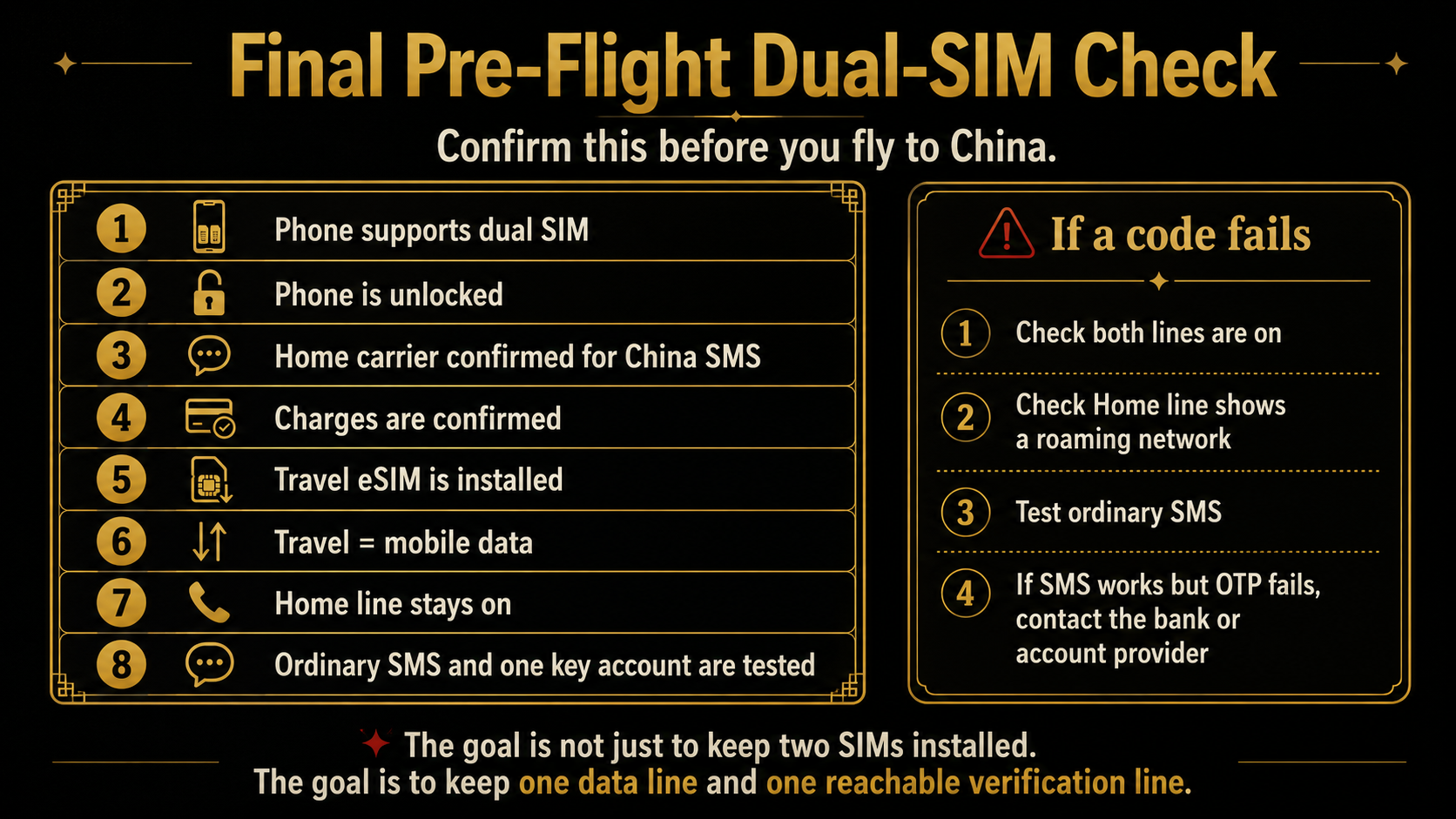
Before you fly, confirm:
- Your exact phone supports the required dual-SIM combination.
- The phone is unlocked.
- The Home carrier has confirmed China roaming SMS conditions.
- SMS, calls, voicemail, and roaming-pass charges are understood.
- Travel is installed according to its provider’s instructions.
- The lines are labeled Home and Travel.
- Travel is selected for mobile data.
- Home remains enabled.
- Automatic data switching has been reviewed.
- Ordinary SMS to Home has been tested.
- One important account’s verification method has been tested.
- App approval, email, an authenticator, recovery codes, or another official backup is available.
- The carrier’s overseas support channel is saved.
For the wider comparison of eSIM, international roaming, local SIMs, VPN preparation, SMS-verification risks, and backup internet, use the China Internet Setup Guide. It provides a broader planning framework; it does not guarantee a specific network or every verification code.
The goal is not simply to keep two SIMs installed. The goal is to prove that one line can carry your China data while the other remains reachable for the verification methods your important accounts actually use.
Last updated: July 25, 2026. Travel platforms, entry rules, app behavior, prices, and service availability can change. Re-check official sources before departure.
Discussion
Ask a question, share recent experience, or flag information that may be outdated.
0 visible comments
No discussions yet.