Transportation
What Should Foreign Travelers Do When 12306 Passport Verification Is Busy, Pending, or Failing?
Learn how to distinguish 12306 system-busy errors, pending passport review, overdue verification, and failed results—and when to use a station counter.
Quick Answer
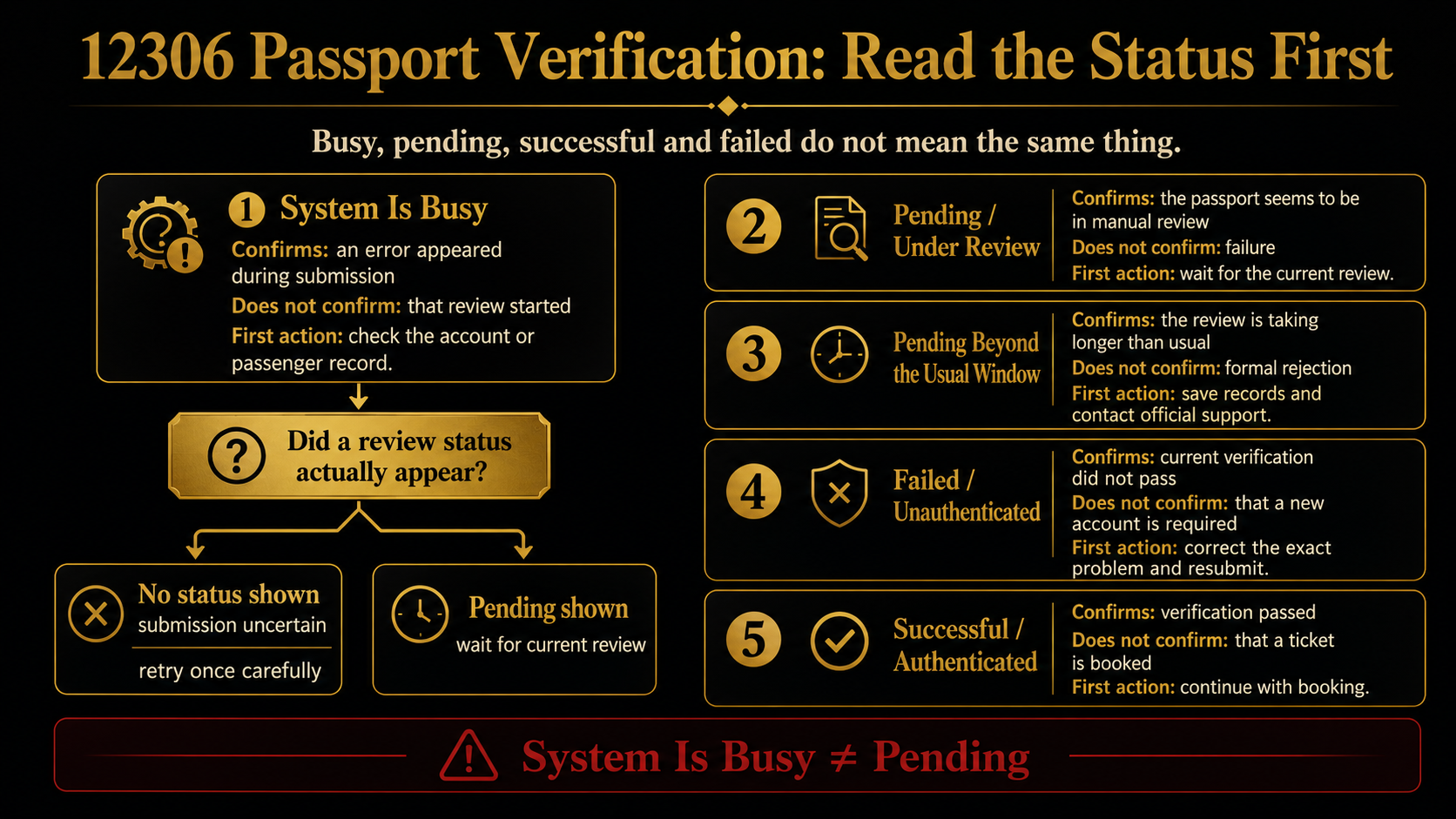
Do not treat “system busy,” “pending,” and “failed” as the same 12306 problem.
Go back to the official account or passenger page and check whether the passport submission created a review status:
- System is busy, with no review status: the submission result is uncertain. Save the error and retry once carefully through the official app or official English website.
- Pending or under review: the passport appears to be in manual review. Official guidance says this usually takes three to five working days, so do not keep replacing a correct submission unless 12306 asks you to.
- Still pending beyond the usual window: check which person is pending, save the dates and screenshots, and contact 12306. If the trip is close, take the original passport to a staffed railway ticket office.
- Failed or unauthenticated: read the exact message, correct the real passport-data or photo problem, and resubmit through the current official prompt.
A station counter is an official backup for identity verification, but verification does not reserve a seat or guarantee that your preferred train still has tickets.
First Identify the Exact 12306 Verification Status
Before changing anything, read the status shown in the official 12306 account or passenger record.
| Status | What it confirms | What it does not confirm | First action |
|---|---|---|---|
| System is busy | An error appeared during submission | That manual review started | Return to the status page and check whether anything was saved |
| Pending / Under Review | The passport appears to be in manual review | Failure or guaranteed approval | Record the submission time and wait for the current review |
| Pending beyond the usual window | The review has taken longer than the usual three-to-five-working-day window | A formal rejection | Check notifications, save records, and contact official support |
| Failed / Unauthenticated | The current verification did not pass | That you need a new account | Read the exact message and correct the real problem |
| Successful / Authenticated | That user or passenger passed verification | That a ticket has been booked or is available | Continue with booking |
A pop-up is not always the final status. The useful evidence is what appears afterward in the account or specific passenger record.
The app and English website may use different labels. A passed account may show Authenticated in the app and Successful on the English website. A failed account may show Unauthenticated or Failed. Each added passenger can also have a separate result.
What to Do When 12306 Says “System Is Busy”
“System is busy” does not tell you why the submission failed, and 12306 does not publicly define one universal cause.
It may be tempting to blame the server, name format, photo, network, VPN, phone clock, or language setting. None should be treated as confirmed unless the official page or 12306 support identifies the problem.
Do this instead:
- Return to your personal-information page or the exact passenger record.
- Check whether Pending, Under Review, or another review status appeared.
- See whether the new passport information or photo was saved.
- Record the exact error text, time, entry point, and whether you used the app or website.
- Save a redacted screenshot that does not expose the full passport number.
- Recheck the name, document type, passport number, nationality, birth date, and expiration date.
If a pending status appears, stop treating the submission as unfinished.
If no status appears and nothing was saved, make one controlled retry through the official 12306 app or official English website. Use the same accurate passport information and change only a problem you can identify.
Do not click upload or submit repeatedly. Do not change the name, network, photo, device, and interface all at once. If several things change together, you will not know which version was submitted or which correction mattered.
The practical rule is:
System Busy ≠ Pending
A traveler who sees “system is busy” and then finds no pending status should not simply wait five days and assume the passport is being reviewed.
What to Do While Passport Verification Is Pending
Pending or Under Review usually means the submitted passport material has entered manual review.
Official identity-verification guidance says the manual process usually takes three to five working days after submission. That is a normal planning window, not a guaranteed deadline.
Count from when the submission clearly completed or the pending status first appeared. Do not automatically treat three to five working days as:
- three to five calendar days;
- approval within 24 hours;
- a guarantee that every case finishes by the fifth day;
- proof that every weekend or public holiday counts as a working day.
While the review is pending:
- record the first submission date and time;
- check the status normally;
- watch app notifications and account messages;
- save the trains you hope to book and a backup;
- identify a staffed station ticket office before the trip becomes urgent.
Do not replace a correct submission every day just to “refresh” it. Unless 12306 requests another upload, leave the pending record alone.
Repeated versions create confusion for the traveler. After several uploads, you may no longer know which version matches the current status or which submission date to use when contacting support.
What If the Review Is Still Pending After the Usual Window?
When the passport is still pending after the usual window, move from waiting to a controlled escalation.
Recount the working days
Start from the confirmed submission or pending date—not the day you registered the account.
If weekends or holidays fall in the middle, do not make your own promise about how 12306 counts them. The official wording is “working days,” and the displayed status still controls your next step.
Check every official notification
Look at:
- the current account or passenger page;
- app notifications;
- account messages;
- the registration email, where relevant;
- the status after logging out and back in.
A failure message or request for another photo may already be waiting even if an older screen still shows pending.
Confirm who is pending
Check whether the status belongs to the registered account holder or one specific added passenger.
An authenticated account holder does not automatically authenticate every traveler. One failed passenger also does not mean the entire account is unusable.
Save a clean record
Keep:
- the first submission date and time;
- the current status;
- whether you used the app or English website;
- whether this is account or passenger verification;
- the app version;
- the exact error or review text;
- redacted screenshots.
Do not share a full passport image, password, activation link, SMS code, or payment information with an unofficial “agent.”
Contact official support or use a station counter
The official English 12306 site lists +86 12306. Calling can help confirm the official next path, but do not expect the person answering to approve the passport immediately.
If the desired train is about to go on sale, could sell out, or the travel date is close, stop waiting for the online status to fix itself. Take the original passport to a staffed railway ticket office.
A pending review and ticket inventory are separate. Waiting indefinitely can leave you verified later but without a seat on the train you wanted.
What to Do After a Failed or Unauthenticated Result
Failed or Unauthenticated means the current verification did not pass. It does not automatically mean you need another account.
Read the exact message, then compare the record with the physical passport character by character:
- document type;
- full name;
- passport number;
- nationality;
- date of birth;
- passport expiration date;
- spaces and characters;
- the field order currently requested.
The official English registration page asks foreign-passport users for nationality, name, passport number, expiration date, birth date, gender, and email. The information should match the passport bio page and current field instructions.
Do not start randomly deleting a middle name or repeatedly swapping surname and given name. The official passport-entry instructions include specific name patterns, and the correct entry depends on how the passport presents the name.
Fix one real error at a time. If the passport number contains an accidental space, correct it. If the date was wrong, correct the date. Do not simultaneously change the spelling, photo, network, and device.
Official recovery paths include:
- editing inaccurate personal or passenger information;
- uploading the requested passport photo through the current official flow;
- taking the original valid passport to a railway ticket counter.
If the message does not reveal a correctable problem, stop guessing. Save it and move to official support or the station counter.
Account Verification and Passenger Verification Are Not the Same
12306 keeps separate records for the registered user and each added passenger.
Registered account holder
This is the identity status of the person who owns the account.
Official guidance shows that the account holder can check the app's personal or person-and-ID-verification area, or use personal information on the English website. If automatic verification fails, the holder may edit the information, upload requested materials, or use a ticket counter.
Added passenger
Each person added under Passenger or My Passengers has a separate result.
You may see:
- the account holder already authenticated;
- one companion still pending;
- another companion failed.
That does not mean the whole account has one status. Open the affected passenger's record and follow its prompt.
Published guidance has distinguished photo requests. Account-holder manual verification may ask for the passport bio page plus a photo of the user holding that page, while passenger verification may ask for the passenger's passport bio page. The interface can change, so the current 12306 prompt takes priority over an old guide or screenshot.
Prepare Passport Photos Without Creating Another Failure
When 12306 asks for a new photo, make the document easy to read.
For a passport bio-page photo:
- use the original passport;
- show the full information page;
- keep the name, number, birth date, and expiration date sharp;
- include the machine-readable lines at the bottom;
- avoid glare;
- keep fingers and shadows away from the text;
- do not crop too tightly;
- do not use filters, beauty tools, or edits.
Submit a holding-passport photo only when the current screen asks for one. Do not add extra images because you think more evidence will make the review faster.
There is no reliable public rule saying one fixed pixel size, compression percentage, VPN location, or time zone solves every problem. Follow the current upload instructions rather than a forum recipe.
Use only the official 12306 app or website for passport uploads.
Before departure, it also helps to prepare the essential China travel apps before departure, but this article stays focused on passport verification.
When to Stop Retrying and Use a Station Ticket Office
Move to a staffed station ticket office when:
- the review has passed the usual window;
- the train you want is about to go on sale or may sell out;
- the record is failed and you cannot identify an online fix;
- the passport name or document situation is unusual;
- account and passenger statuses conflict;
- 12306 directs you to offline handling;
- the travel date is close.
Bring:
- the original passport used for verification and booking;
- your 12306 account details;
- intended departure and arrival stations;
- travel date;
- preferred and backup trains;
- redacted screenshots of the error or status.
A 2025 public guide for foreign travelers still lists the railway station ticket counter as an official passport-verification path.
The counter can help with identity verification and ticket handling. It cannot create inventory. You may finish verification and still find the preferred train sold out.
Do not wait until the train is about to leave. Large stations take time to navigate, counters may have lines, and exact operating capacity can vary.
After verification, use the separate guide to complete the full 12306 booking and boarding process. If the delay changes the trip itself, plan the wider China transport system around your rail journey rather than relying on one train.
Final 12306 Passport Verification Decision Checklist
Before taking the next step:
- read the exact official status;
- distinguish account-holder verification from passenger verification;
- after System Busy, check whether a review status appeared;
- if nothing was saved, retry once carefully;
- record the first pending date and time;
- allow the usual three-to-five-working-day review window;
- do not keep replacing correct information while pending;
- if overdue, check notifications and call +86 12306;
- after failure, correct only real passport-data or photo problems;
- follow the photo request shown in the current flow;
- save the exact message, time, entry point, and redacted screenshot;
- use a station counter when the trip is becoming urgent;
- never send passport images or security codes to strangers;
- do not confuse successful verification with a booked or available ticket.
The useful question is not simply “Why is 12306 failing?” It is “Did the submission fail, is it still under review, has the usual window passed, or was it formally rejected?” Once you identify that state, the next step becomes clearer.
Last updated: July 27, 2026. Travel platforms, entry rules, app behavior, prices, and service availability can change. Re-check official sources before departure.
Discussion
Ask a question, share recent experience, or flag information that may be outdated.
0 visible comments
No discussions yet.